Recovery is personal, but it does not have to be solitary. Some of the most powerful accountability comes from people who already know you: a sponsor who has walked beside you, a family member who has seen the hard days, or a close friend who checks in without judgment. Private Groups in MyMeetings bring those relationships into one shared space where meeting attendance, sobriety milestones, and encouragement flow together naturally.
This guide walks through every step: creating a group, getting people in for free, and making the most of the feed where it all comes together.
Where to Find Groups
Tap the Groups tab in the bottom navigation bar. Look for the speech bubble icon labeled Groups. If you are not signed in, the tab shows a brief preview of what you get access to: celebrating sobriety with others, sharing attendance and milestones, and posting updates to encourage peers.
Once signed in, the Groups screen lists every group you belong to. Two buttons anchored at the bottom are always visible: Join Group and Create Group.
Creating Your Private Group
Tap Create Group to open the creation form. A blue info banner at the top explains the key benefit right away: once your group is created you receive a shareable code, and friends or family who enter it during onboarding get MyMeetings for free. That detail is worth passing along to every person you invite.
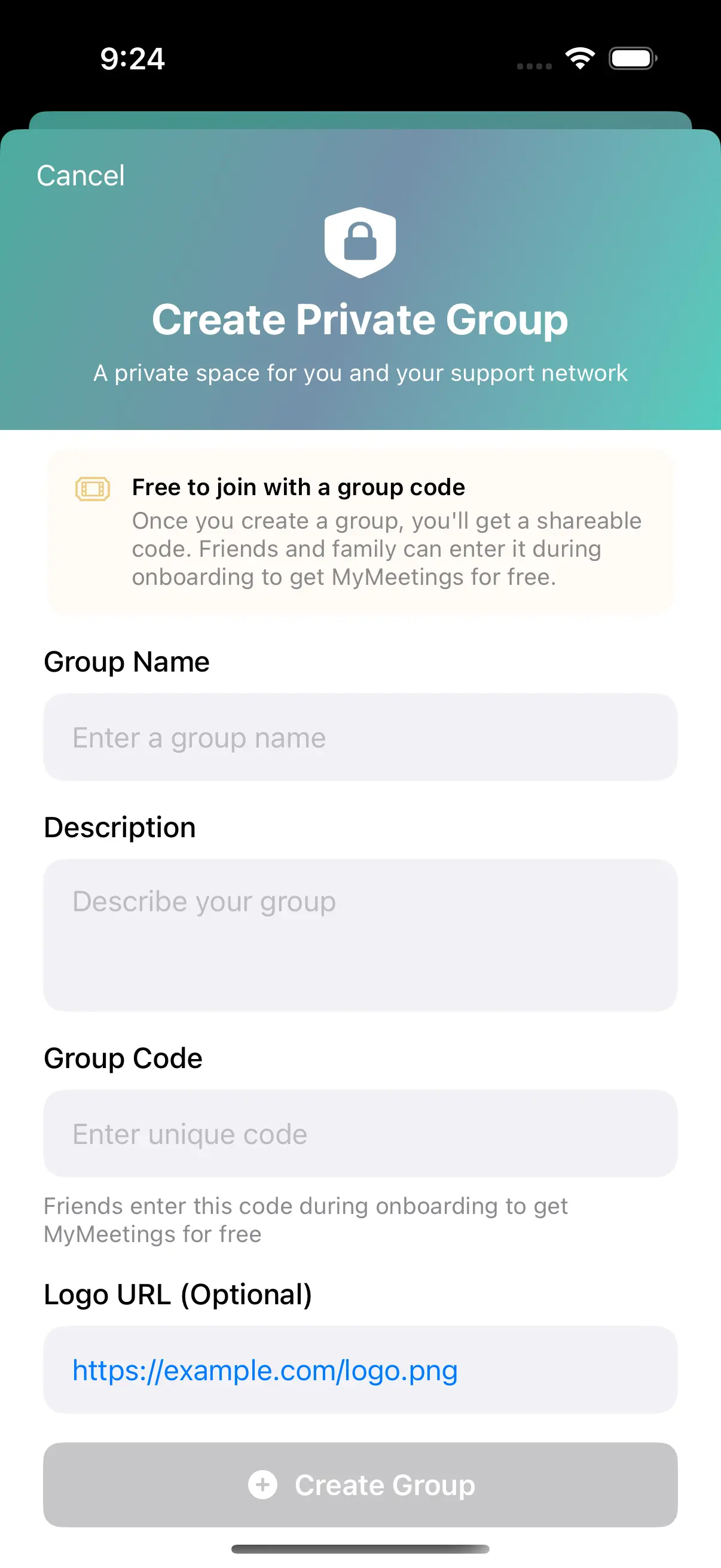
The form has four fields:
- Group Name — what everyone sees at the top of the feed
- Description — a short note about who the group is for
- Group Code — the unique identifier you will share with your network; choose it carefully because it cannot be changed after creation
- Logo URL — optional; paste a direct image URL for a custom group avatar with a live preview
The Create Group button stays disabled until all required fields are filled. Once you tap it, the app creates the group and moves you to the share screen.
Sharing Your Code — and Why It Matters
After creation, a confirmation screen shows a green checkmark and two things to share:
- The Group Code — displayed in a highlighted box with a one-tap Copy button
- The Invite Link — a deep link that opens the app directly to your group
Tapping Share Invite Link opens the iOS share sheet with a pre-written message containing the group name, the deep link, and a link to download the app. Send it via Messages, WhatsApp, email — wherever your contacts will see it.
The key message to pass along: anyone who enters your group code during the MyMeetings onboarding flow gets free Premium access. That removes the biggest barrier to getting the people you care about onto the app with you. You can share this code with as many people as you want.
Joining a Group
During Onboarding — With Free Premium Access
When someone downloads MyMeetings and goes through setup, they reach a screen that asks whether they have a group code. As they type, the app validates the code in real time — showing the group name and current member count the moment a valid code is recognized. A green Join button then appears to confirm.
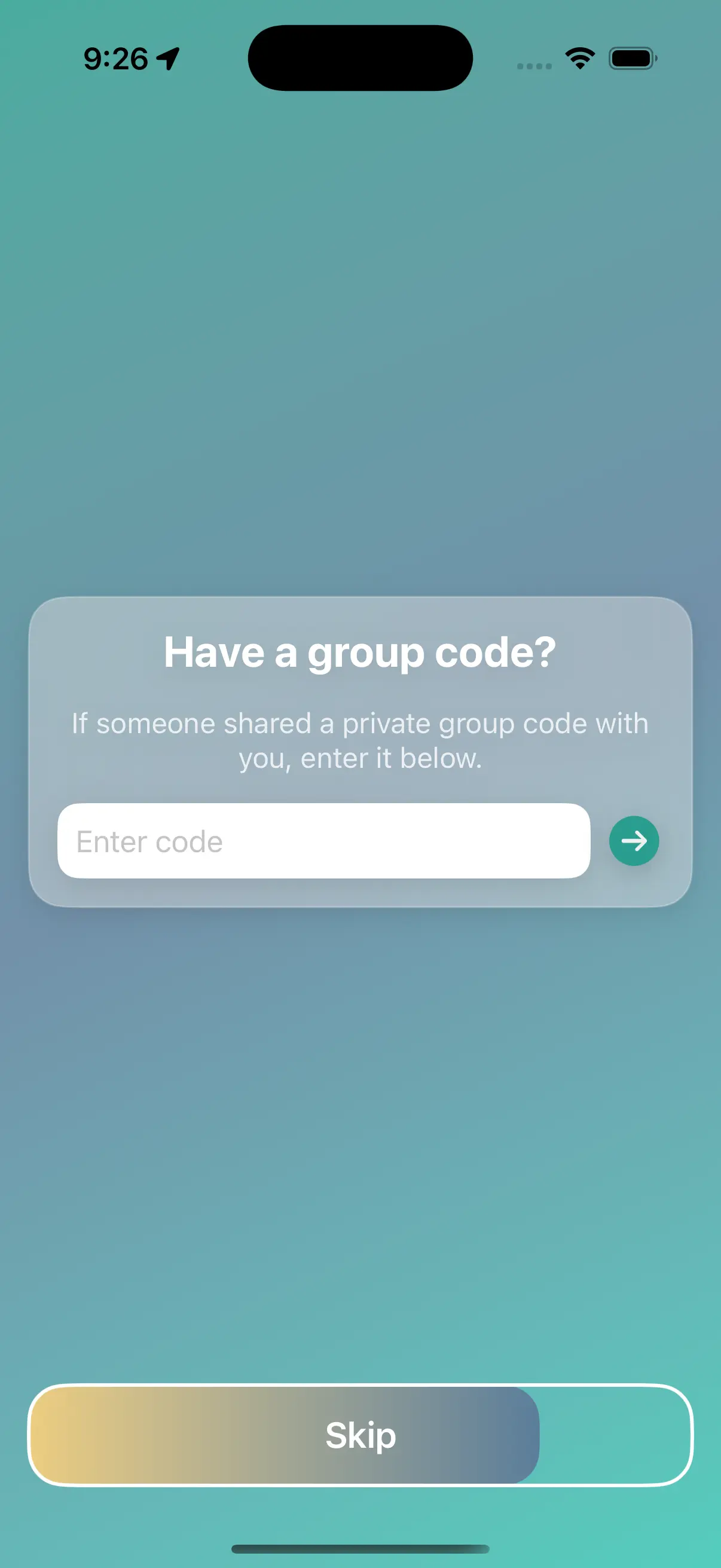
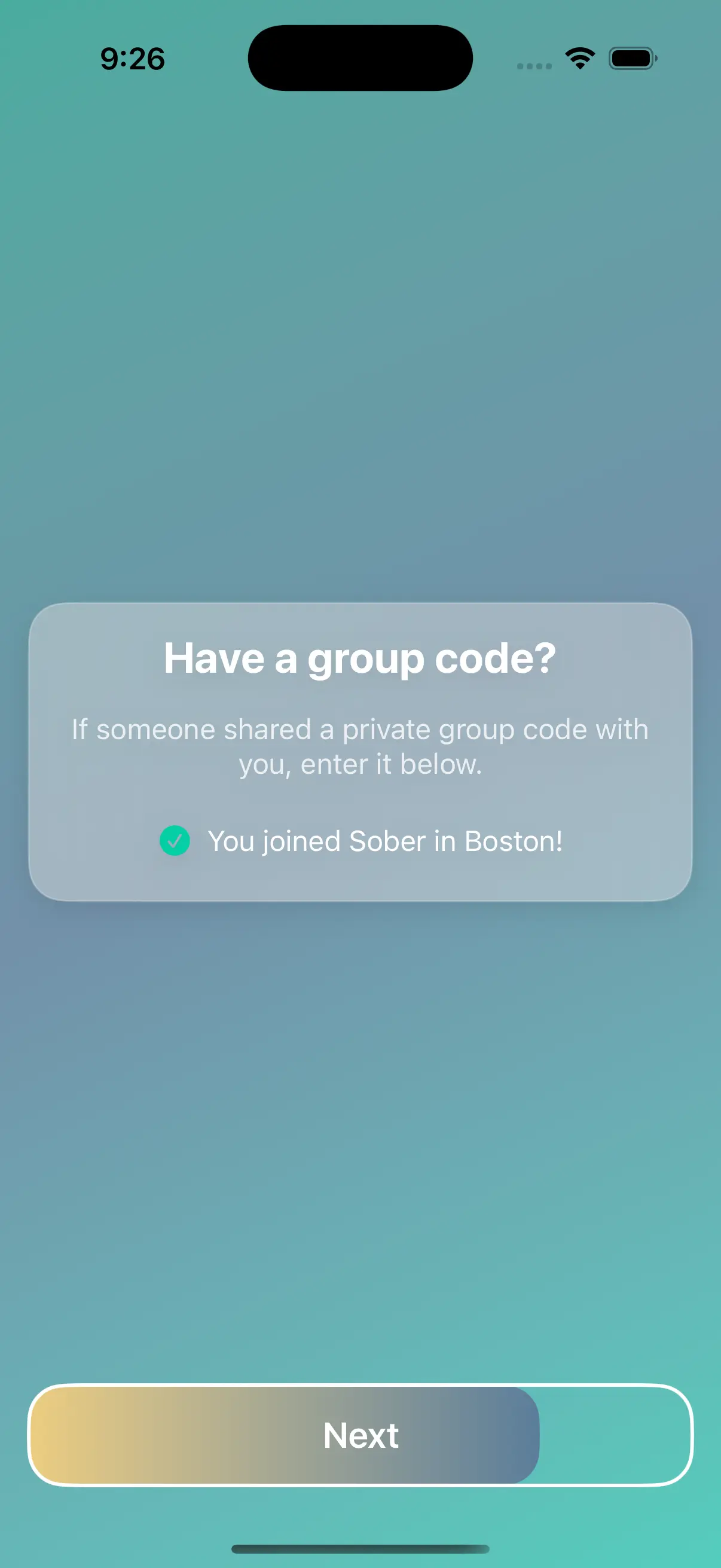
Joining through onboarding does two things at once: it adds the person to your group immediately, and it unlocks free Premium access for them. This is why sharing the code before your contacts download the app is the most powerful path — they get the full experience without any paywall.
From Within the App
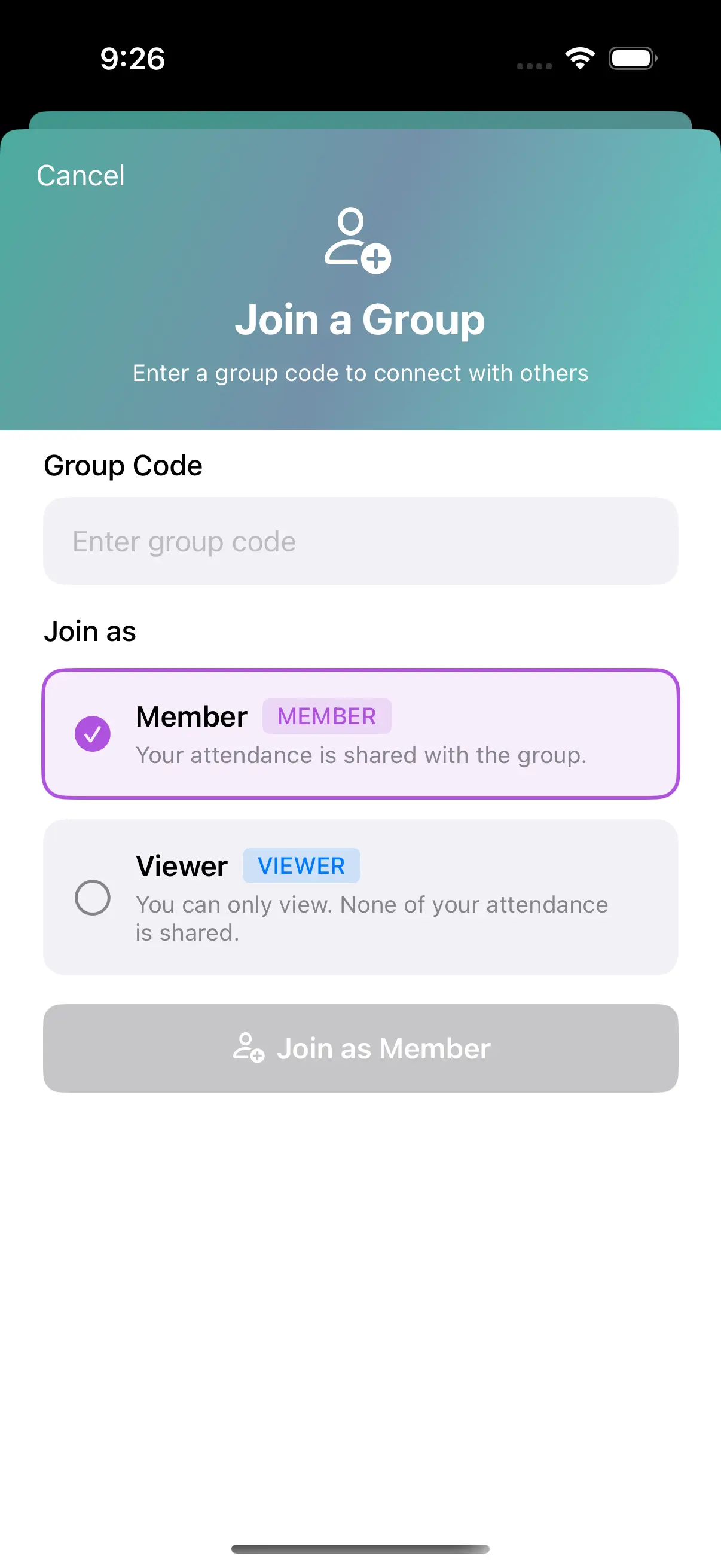
People already using MyMeetings can join via the Join Group button on the Groups screen. They enter the group code, select a role, then tap Join as Member or Join as Viewer.
Member vs. Viewer: Choosing Your Role
Before joining any group, every user picks one of two roles. The choice determines what the group sees from them.
| Role | Visible in the feed | Can post and comment |
|---|---|---|
| Member | Check-ins, milestones, and posts | Posts and comments |
| Viewer | Not visible to the group | Comments and likes only |
Members are the core of the group. Every meeting check-in and sobriety milestone they log surfaces in the feed automatically — no extra steps required. If the group has posting enabled, members can also write text updates.
Viewers are fully present but invisible in the feed. This role is designed for anyone who wants to follow along and support others without sharing their own activity — a family member who is not in recovery, or someone who is not yet ready to broadcast their check-ins to the group.
Inside the Group Feed
Tapping a group card opens the feed. The navigation bar shows the group name, and the top-right corner holds a share icon (always visible) and a plus icon for posting (visible to members when posting is enabled).
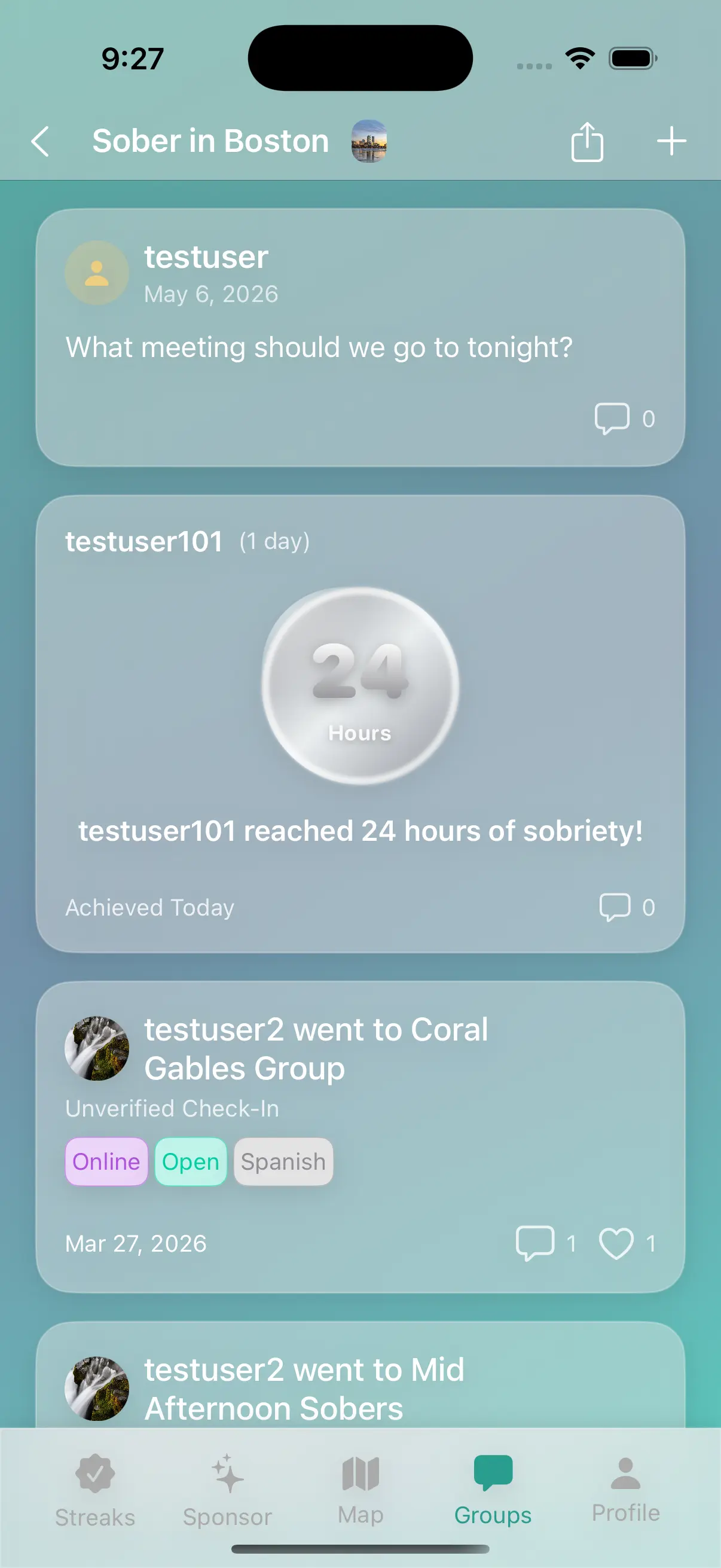
The feed is reverse-chronological and draws only from members. Three types of cards appear:
- Attendance Cards — generated automatically when a member checks into a meeting. Shows the meeting name, verification status, meeting types, sobriety time, and any notes the member chose to share. Anyone can like or comment.
- Milestone Cards — generated automatically when a member reaches a sobriety milestone. Shows the milestone title, how long ago it was reached, and the sobriety start date. A natural moment to leave an encouraging comment.
- Post Cards — user-written text updates. Members can share news, encouragement, or anything on their mind. Authors can delete their own posts at any time.
Every card supports comments. Quick-reply buttons at the top of the comment sheet make it fast to respond — 👏👏👏, Rooting for you!, Great job! — and custom messages can be up to 255 characters. Relative timestamps keep the feed feeling live.
Keeping the Group Active
A private group is only as strong as the people in it. A few habits make a real difference:
- Invite early. Groups with fewer than five members show an Invite more members button right on the group card. Tap it to open the share sheet and loop in more people before the feed goes quiet.
- Lead with the free access offer. When reaching out to someone who has not yet downloaded the app, mention that entering your code during onboarding is free. That single detail removes the most common reason people do not follow through.
- Check in consistently. Every time you attend a meeting and check in via MyMeetings, an attendance card appears in the group feed automatically. Your consistency speaks for itself — no extra posts needed.
- Respond to milestones. When someone hits a sobriety milestone, leave a comment. That moment of acknowledgment often means more than people expect.
Frequently Asked Questions
Can I be in more than one group?
Yes. You can join as many groups as you like, and each group has its own separate feed.
Can I change my group code after creating the group?
No. The group code is permanent once it is set. Choose it carefully before tapping Create Group.
What does a Viewer actually see?
Viewers see the complete group feed, including all attendance cards, milestone cards, and posts. They can like and comment on anything. The only difference is that their own activity is never surfaced to the group.
Does everyone who uses my code get free Premium access?
Anyone who enters a valid group code during the onboarding flow gets free access to Premium features. People who join from inside the app after setup — via the Join Group button — do not receive the same benefit. This is why it pays to share your code before your contacts download the app.
Is the group actually private?
Yes. Private groups are invite-only. The only way to see or join a group feed is to enter the group code. Nothing shared inside a group is visible to anyone outside it.
Ready to build your support network? Download MyMeetings, create your first private group, and share your code with the people who matter most.